Thermal Receipt Printer Faults: Paper, Connection or Application?

Diagnose blank receipts, missing output and cutter faults with safe checks that distinguish the printer from its driver and POS application.
A receipt printer failure can look like a terminal fault because it appears at the end of a sale. Start by checking the printer's own status rather than reinstalling the POS application. Before retrying the transaction, establish whether the payment and sale were already completed; a missing receipt is not proof that the sale failed.

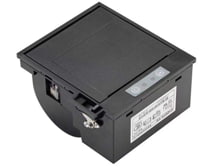

Use the printer's independent test
Follow the manufacturer's self-test procedure. Check that the correct thermal paper is loaded in the correct orientation, the cover is closed and there is no visible obstruction. Let hot components cool before handling them and do not force a cutter or insert tools into a powered mechanism. Stop and seek authorized service if there is damage or repeated mechanical jamming.
Interpret the result
- Blank self-test: verify paper type and orientation before suspecting the print head.
- Successful self-test but no application output: check the configured queue, port, driver and network address.
- Garbled text: confirm command emulation, character encoding and the application's printer profile.
- Intermittent output: inspect the approved cable, power connection and queue state.
- Drawer not opening: verify the printer-driven drawer specification and configured pulse rather than using a network cable.
Confirm a complete recovery
Print a real sample receipt with taxes, long descriptions and any required characters. Check cutting and authorized drawer operation. Record the confirmed cause and keep the correct driver and configuration with the workstation documentation. If a duplicate receipt is needed, use the application's reprint function rather than creating a second sale to obtain paper output.