15-Inch or Larger POS Display: Balance Workspace and Reach
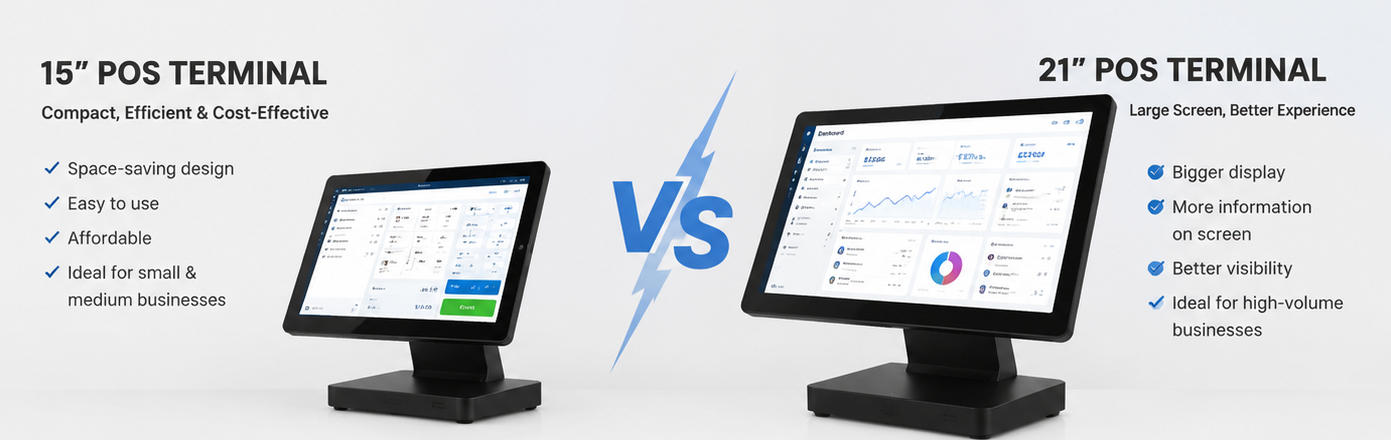
Compare a 15-inch terminal with a roughly 21-inch format using application layout, counter dimensions, resolution and repeated touch tasks.
A larger POS screen can show more content, but it also changes reach, sightlines and the amount of counter space required. Comparing a 15-inch panel with a roughly 21-inch format should start with the application and user position. Diagonal size alone does not establish readability or efficiency.

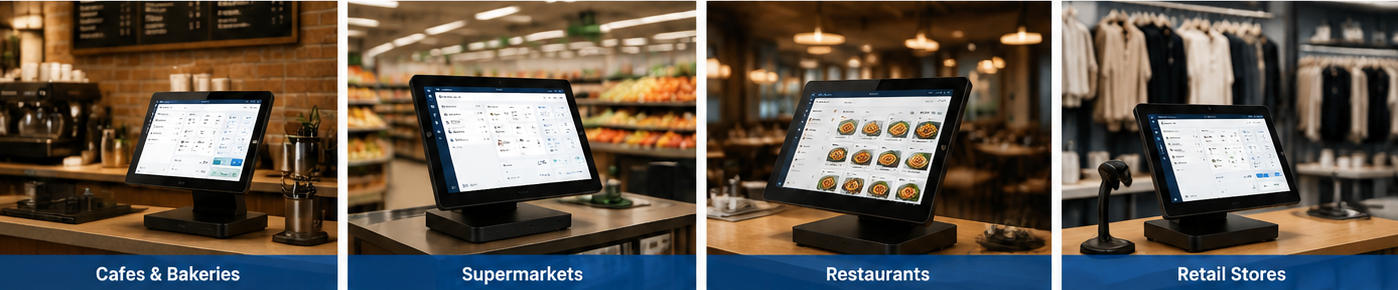
Test the information density
Load the actual sales screen with long product names, modifiers and keyboard input. Check resolution and scaling together: more pixels can make controls smaller if the interface does not adapt. A larger panel may help a complex menu or service application, while a compact layout can remain comfortable on a smaller screen.
Check the physical workstation
- Measure the entire stand, screen sweep and service clearance.
- Observe repeated touches at upper and far-side controls.
- Check glare and viewing angle under the real lighting.
- Keep customer payment and receipt collection accessible.
- Verify mounting, stability and supported display outputs for the final configuration.
Choose through a practical trial
Ask ordinary users to complete normal sales, corrections and close-out without shortcuts. Include accessibility needs and any protective overlay. Compare maintenance and replacement costs as well as visibility. Select the format that makes the required work comfortable and repeatable, rather than assuming a larger display is always a professional upgrade.